

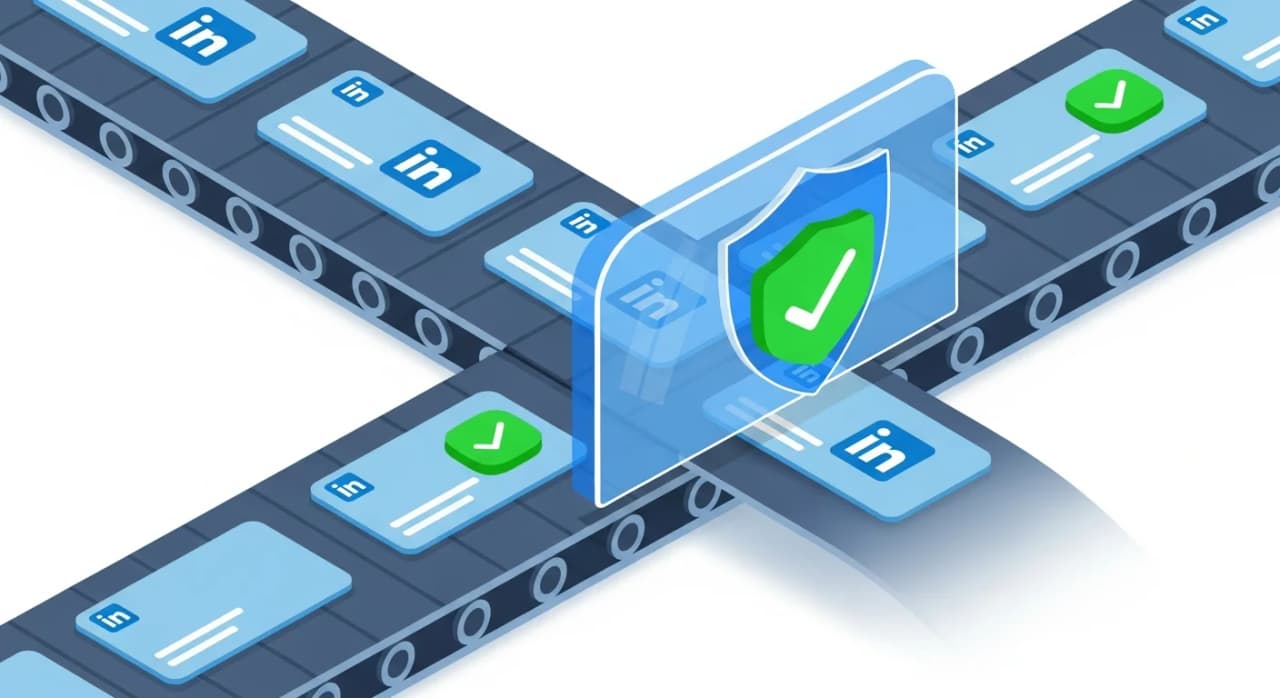
How to Automate LinkedIn Connection Requests Safely in 2026
LinkedIn connection request automation is a double-edged sword. Done right, it can 10x your outreach capacity and fill your pipeline with qualified leads. Done wrong, it gets your account restricted or permanently banned.
In this guide, we'll show you exactly how to automate LinkedIn connection requests safely, including daily limits, personalization best practices, tool selection, and compliance strategies that keep your account healthy while scaling your prospecting.
The LinkedIn Automation Landscape in 2026
LinkedIn has been cracking down on automation for years, but the reality is that millions of users still automate successfully. The key is understanding what LinkedIn actually restricts and why.
What LinkedIn Prohibits
According to LinkedIn's Terms of Service:
❌ Scraping: Using bots or scripts to extract data from LinkedIn
❌ Fake accounts: Creating profiles with false information
❌ Spam: Sending identical messages to large numbers of people
❌ Excessive automation: Tools that operate from the cloud without human involvement
❌ API abuse: Unauthorized use of LinkedIn's API
What LinkedIn Tolerates (Gray Area)
✅ Browser-based automation: Tools that run locally and mimic human behavior
✅ Personalized outreach at scale: Messages tailored to each recipient
✅ Reasonable volume: Staying within daily/weekly limits
✅ Human-in-the-loop: Automation with human oversight and review
✅ Premium accounts: Sales Navigator users get more flexibility
The bottom line: LinkedIn wants to prevent spam and protect user experience. If you're providing value, personalizing your approach, and respecting limits, you're unlikely to face restrictions.
Safe Daily Limits for Connection Requests
LinkedIn imposes both hard limits (technical caps) and soft limits (behavioral flags).
Official Limits
Free accounts:
- Connection requests: ~100 per week (~20-25 per day)
- Messages: Unlimited to connections, 5-15 InMails per month
Premium/Sales Navigator:
- Connection requests: ~100-150 per week (~25-30 per day)
- InMail: 20-50 per month depending on tier
Safe Automation Limits
To avoid triggering LinkedIn's detection systems, stay conservative:
Recommended daily limits:
- Connection requests: 15-25 (Free), 20-30 (Premium)
- Messages: 50-75 total
- Profile views: 100-150
- Endorsements/follows: 30-50
Weekly totals:
- Connection requests: 100-150 maximum
- Total actions: 400-600 (all activities combined)
Red Flags to Avoid
LinkedIn's algorithm watches for:
- Sudden volume spikes: Going from 10 to 100 requests overnight
- Identical messages: Copy-paste to multiple people
- Low acceptance rates: <30% acceptance suggests poor targeting
- Rapid-fire actions: 10 requests in 10 seconds looks robotic
- Cloud-based activity: IP addresses from data centers rather than residential
Choosing the Right Automation Tool
Not all LinkedIn automation tools are created equal. Some are safe, others will get you banned within days.
Tool Categories
1. Cloud-Based Tools (High Risk)
These run from external servers, not your computer. LinkedIn can easily detect and restrict them.
Examples: Phantombuster, Waalaxy (cloud mode), many "growth hacking" tools
Risk level: 🔴 High (account restrictions common)
2. Browser Extensions (Medium Risk)
These run in your browser on your computer, mimicking human behavior more closely.
Examples: LinkedIn Helper, Dux-Soup, We-Connect
Risk level: 🟡 Medium (safer than cloud, still detectable)
3. Local Automation (Lower Risk)
These run on your machine and simulate natural human patterns.
Examples: BeReach, Expandi, LinkedHelper
Risk level: 🟢 Lower (harder for LinkedIn to detect)
4. Manual + AI Assistance (Lowest Risk)
You send messages manually, but AI helps with research and personalization.
Examples: BeReach (hybrid mode), custom scripts with OpenAI API
Risk level: 🟢 Lowest (appears fully human)
Evaluation Criteria
When selecting a tool, prioritize:
✅ Local execution: Runs on your computer, not in the cloud
✅ Human behavior simulation: Random delays, mouse movements, realistic timing
✅ Personalization capabilities: Dynamic variables, AI-powered customization
✅ Compliance features: Respects daily limits, avoids spam patterns
✅ Account safety track record: Established tools with low ban rates
✅ CRM integration: Syncs with your sales stack
BeReach checks all these boxes, combining local execution with AI-powered personalization to keep your account safe while scaling outreach.
Personalization: The Key to Safety
The #1 factor in avoiding restrictions? Personalization. LinkedIn's algorithms can detect spam patterns, and generic messages trigger flags.
Why Personalization Protects You
- Higher acceptance rates: Well-targeted, personalized requests get 40-60% acceptance vs. 10-20% for generic ones
- Fewer "Ignore" clicks: Low acceptance rates are a red flag to LinkedIn
- Positive engagement signals: Replies and conversations indicate legitimate networking
- Human appearance: Unique messages prove a human is involved
Levels of Personalization
Level 1: Basic Variables (Minimum)
"Hi {{FirstName}}, I see you're in {{Industry}}. Would love to connect!"
Risk: Still feels templated, low acceptance rates
Level 2: Role-Based Customization (Better)
"Hi {{FirstName}}, as a {{JobTitle}} at {{Company}}, you're likely dealing with {{CommonChallenge}}. I work with similar teams and would love to connect."
Risk: Better, but still detectable patterns
Level 3: AI-Powered Deep Personalization (Best)
"Hi Sarah, I noticed your recent post about scaling your SDR team without burning them out. We've helped Series B companies like Acme Corp automate 60% of prospecting while improving response rates. Given your focus on sustainable growth, I thought we should connect."
Risk: Minimal—this looks completely human-written
AI Personalization at Scale
Modern tools can generate Level 3 personalization automatically:
- Profile analysis: AI reads the prospect's profile, recent posts, company info
- Pattern recognition: Identifies relevant talking points and pain points
- Message generation: Creates unique, contextual connection requests
- Human review: Optionally, review and approve before sending
Tools like BeReach integrate with AI models (GPT-4, Claude) to generate personalized messages that maintain your brand voice while scaling to hundreds of prospects.
Safe Automation Workflow
Here's a step-by-step process that prioritizes account safety:
Phase 1: Warm-Up Period (Week 1-2)
Goal: Establish normal usage patterns
Actions:
- Send 5-10 connection requests per day manually
- Engage with content (like, comment) daily
- Complete your profile fully
- Join relevant groups
- Post 2-3x per week
Why: LinkedIn trusts accounts with established, organic activity patterns
Phase 2: Gradual Automation (Week 3-4)
Goal: Introduce automation slowly
Actions:
- Start with 10-15 automated connection requests per day
- Keep messages highly personalized
- Monitor acceptance rates (target >35%)
- Mix automated and manual activity
- Respond to all replies personally
Why: Gradual increases avoid sudden behavioral changes that trigger flags
Phase 3: Scaled Automation (Week 5+)
Goal: Reach sustainable volume
Actions:
- Increase to 20-30 connection requests per day
- Maintain >40% acceptance rate
- Continue mixing manual engagement
- Track and optimize messaging
- Review tool activity logs weekly
Why: Consistent, sustainable volume with high engagement signals legitimate use
Daily Routine for Safe Automation
Morning (15-20 minutes):
- Review and respond to new messages
- Check connection acceptance rate
- Approve AI-generated messages (if using human-in-the-loop)
- Engage with 5-10 posts from prospects or connections
Afternoon:
- Send automated connection requests (staggered throughout the day)
- Monitor for responses
- Update CRM with new connections
Evening (10 minutes):
- Respond to any new messages
- Review tomorrow's prospect list
- Adjust targeting if acceptance rates drop
Advanced Safety Strategies
1. Use a Dedicated LinkedIn Account
Strategy: Create a separate Sales Navigator account for prospecting
Benefits:
- Protects your primary personal account
- Can test automation limits more aggressively
- Clear separation between personal and professional networking
Implementation:
- Purchase LinkedIn Sales Navigator ($80-135/mo)
- Build a complete, legitimate profile
- Warm up gradually over 2-4 weeks
2. Employ IP Rotation
Strategy: Use residential proxies or VPN to vary your IP address
Benefits:
- Mimics different physical locations
- Reduces pattern detection
- Distributes activity across IPs
Caution: Only use high-quality residential proxies. Datacenter IPs are red flags.
3. Implement Session Randomization
Strategy: Vary your activity patterns daily
What to randomize:
- Time of day you send requests
- Number of requests per session
- Order of prospects (don't go alphabetically)
- Intervals between actions (5-15 min ranges)
Tools: Most good automation platforms (including BeReach) do this automatically.
4. Monitor Your LinkedIn Health Score
Metrics to track:
- Acceptance rate: Target >40%
- SSI Score: LinkedIn's Social Selling Index (aim for >70)
- Response rate: Should be >10% of accepted connections
- Profile views: Should increase with outreach activity
- Restriction notices: Any warnings from LinkedIn = pause immediately
Tools:
- LinkedIn native analytics
- Sales Navigator insights
- Automation tool dashboards
5. Diversify Your Activity
Don't just automate connection requests. Balance with:
- Content engagement (likes, meaningful comments)
- Group participation
- Posting your own content (2-4x/week)
- Profile visits (shows genuine interest)
- Endorsements and recommendations
Goal: Create a holistic activity profile that looks naturally human.
Compliance and Legal Considerations
LinkedIn Terms of Service
Violating LinkedIn's ToS can result in:
- Temporary restrictions (24-48 hours)
- Permanent account suspension
- Loss of paid subscriptions (no refund)
Key ToS sections to know:
- Section 8.2: Restrictions on automated tools
- Section 8.3: Restrictions on scraping
- Section 2.5: Prohibitions on creating false profiles
GDPR and Privacy Laws
If you're targeting EU prospects:
✅ Legitimate interest: Prospecting is generally allowed under legitimate business interest
✅ Transparency: Be clear about who you are and why you're reaching out
✅ Opt-out: Respect requests to stop contact
❌ Scraping personal data: Don't extract and store data outside LinkedIn without consent
CAN-SPAM and Anti-Spam Laws
While LinkedIn isn't email, similar principles apply:
✅ Honest subject lines/intros: Don't mislead about your purpose
✅ Clear sender identity: Use your real name and company
✅ Opt-out mechanism: Stop contacting if they ask
❌ Deceptive practices: Fake personas, false claims
Best Practice: Disclosure
Consider being transparent about automation:
"I use tools to help me research and personalize outreach at scale, but I'm personally reviewing all conversations. Would love to connect and discuss [topic]."
Benefits:
- Builds trust
- Differentiates you from pure spam
- Shows you respect their time
Troubleshooting and Recovery
Signs Your Account is at Risk
🚨 Warning signs:
- Connection requests pending for days (usually accepted/declined within 48h)
- Sudden drop in profile views
- Messages not being delivered
- "You've reached the weekly limit" notification (when you haven't)
- Restricted from sending connection requests
What to Do if Restricted
Step 1: Stop all automation immediately
Step 2: Review LinkedIn's notification
They usually tell you why (spam reports, excessive activity, etc.)
Step 3: Wait out the restriction
Most temporary restrictions last 1-7 days
Step 4: Appeal if warranted
Contact LinkedIn support if you believe it's a mistake
Step 5: Adjust your approach
When access is restored:
- Lower your daily volume by 30-50%
- Increase personalization quality
- Mix in more manual activity
- Check acceptance rate trends
Preventing Future Restrictions
- Never ignore a restriction—figure out what caused it
- Lower limits if acceptance rate drops below 35%
- Pause automation if you get any warning
- Diversify activity (don't just send connection requests)
- Use better targeting (higher acceptance = fewer spam reports)
Tools and Resources
Recommended Safe Automation Tools
BeReach ⭐ Top choice
- Local browser automation
- AI-powered personalization
- Built-in safety limits
- CRM integration
- $200-500/mo
Expandi
- Cloud-based but uses your computer
- Good personalization features
- Solid safety record
- ~$99/mo
LinkedHelper
- Desktop application
- Many features beyond connection requests
- Requires manual management
- ~$15/mo
Supporting Tools
Research and enrichment:
- Apollo.io: Find email + phone
- ZoomInfo: B2B contact data
- Clay: AI-powered enrichment
Messaging and copywriting:
- ChatGPT/Claude: AI message generation
- Lavender: Email grading (works for LinkedIn too)
CRM and tracking:
- HubSpot: Free CRM with LinkedIn integration
- Salesforce + Sales Navigator integration
- Pipedrive: Simple pipeline tracking
Learning Resources
- LinkedIn Sales Navigator Learning Center
- OpenClaw Documentation: AI agent frameworks
- Josh Braun (LinkedIn outreach expert)
- Morgan Ingram (video prospecting + LinkedIn)
Frequently Asked Questions
Can LinkedIn detect all automation tools?
No. LinkedIn can easily detect cloud-based scrapers and bots, but well-designed local tools that mimic human behavior are much harder to flag. Tools like BeReach that run in your browser, use random delays, and incorporate personalization are generally safe when used within reasonable limits.
What happens if I get my account restricted?
Most first-time restrictions are temporary (1-7 days). LinkedIn will notify you via email and in-app message. Simply wait out the restriction period, then resume activity at a lower volume with better personalization. Repeated violations can lead to permanent bans, so take restrictions seriously.
Is it better to use a separate account for automation?
Yes, if you have the budget. A dedicated Sales Navigator account ($80-135/mo) protects your main profile and allows you to test limits more aggressively. Make sure it's a legitimate account with a complete profile—fake or empty accounts get flagged quickly.
How can I improve my connection request acceptance rate?
Focus on better targeting (ideal customer profile) and deeper personalization. Reference something specific from their profile or recent activity, explain clearly why you're connecting, and make it about them (not your product). Acceptance rates above 40% indicate good targeting and messaging.
Should I use InMail or connection requests?
Connection requests are better for most B2B prospecting—they're free (with limits), feel less salesy, and allow ongoing engagement once accepted. Use InMail for executive prospects who don't accept connections or when you need to bypass the connection requirement.
What's the best time to send LinkedIn connection requests?
Tuesday-Thursday, 8-11 AM and 4-6 PM in your prospect's timezone typically see the highest acceptance rates. However, spreading requests throughout the day looks more natural. Avoid late nights and weekends unless your audience is active then.
LinkedIn connection request automation doesn't have to be risky. By respecting limits, prioritizing personalization, choosing the right tools, and maintaining account health, you can safely scale your outreach to hundreds of prospects per month.
The key is thinking long-term: build a sustainable automation system that fills your pipeline consistently without jeopardizing your account. Quality beats quantity, and a healthy account generating 20-30 quality connections per day will outperform an aggressive, risky approach that gets restricted.
Ready to automate safely with AI-powered personalization? BeReach helps you scale LinkedIn outreach while staying within safe limits and compliance guidelines. Start your free trial today.